
To make a game in Blender, build assets, plan scenes, add logic, then move everything into a game engine.
You may have opened Blender with a clear game idea but no clear next step. The menus can feel like a maze, especially when modeling, rigging, animation, lighting, and game code all seem to compete for attention. I understand that frustration. Blender is a powerful free tool, but it is not a complete modern game engine by itself. This guide explains how to make a game in Blender, which learning books may help, and how to choose resources that fit your skill level and goals.
How to Make a Game in Blender
Blender can help you create the visual parts of a game. You can model a hero, sculpt a monster, paint textures, build props, make a level, rig characters, and create animations. You can also set up cameras, lights, materials, and simple scene tests. However, most modern games need a separate engine for player input, menus, physics, sound, saving, and final play.
I explain Blender as the workshop and the game engine as the stage. In the workshop, you build and polish your assets. On the stage, players move, fight, explore, and interact with the world. This simple view makes learning less confusing.
The basic workflow looks like this:
- Choose a small game idea.
- Plan the game loop.
- Create a simple prototype.
- Model only the assets you need.
- UV unwrap and texture those assets.
- Rig and animate characters.
- Export the files in a game-friendly format.
- Import them into Godot, Unity, or Unreal Engine.
- Add code, physics, audio, menus, and game rules.
- Test often and improve one problem at a time.
For beginners, I recommend a small third-person scene, a top-down room, or a short platform level. Avoid starting with an open-world RPG. Large projects need teams, tools, art pipelines, and months or years of work. A tiny finished game teaches more than a huge unfinished dream.
What Blender Does Best for Game Development
Blender is strongest when you need 3D content. Its modeling tools let you shape objects with simple edits, modifiers, sculpting, and mesh controls. You can make a low-poly crate in minutes or spend days creating a detailed character. The same program also supports UV mapping, materials, armatures, animation, rendering, and compositing.
Blender also works well for fast changes. If a sword feels too large, you can scale it. If a wall needs another window, you can edit the mesh. If a character needs a new pose, you can adjust the rig. That speed makes Blender useful even when another engine handles the final game.
I suggest learning a clean, simple workflow before chasing visual detail. Name objects clearly. Apply scale when needed. Keep the origin point useful. Use collections to organize scenes. Save versions often. These habits seem small, but they prevent major problems later.
Blender also offers a non-destructive workflow. Modifiers can add bevels, mirror parts, smooth surfaces, or create repeated details. A modifier acts like a recipe placed over your model. You can change the recipe without destroying the base mesh. This approach saves time and makes revisions safer.
Plan the Game Before You Open Blender
A strong game plan does not need many pages. Write one sentence that explains what the player does. For example, “The player explores a ruined station, finds three keys, and escapes before the lights fail.” This sentence gives you a goal, setting, and basic game loop.
Next, list the objects that support that idea. You may need a player character, a floor, walls, doors, keys, lights, signs, and one enemy. Do not model ten different doors if the player only needs one. Duplicate and adjust assets when possible.
Make a rough paper map or blockout scene. In Blender, use cubes and simple shapes to mark rooms, ramps, platforms, and walls. Do not add textures yet. This stage helps you test scale, movement, sight lines, and pacing. A blockout is like a pencil sketch before a painting.
If you plan to export to Godot, Unity, or Unreal, decide your target engine early. Each engine has its own import settings and preferred material workflow. A clean export from Blender reduces wasted work. It also helps you choose the right file type, scale, texture size, and animation format.
Modeling Game Assets in Blender
When learning how to make a game in Blender, start with low-risk objects. A barrel, crate, chair, lantern, or simple wall teaches useful skills without overwhelming you. Practice adding loops, extruding faces, beveling sharp edges, and keeping the mesh neat.
Game models need a balance between looks and performance. A model with too many polygons may slow a scene, especially when many copies appear at once. A model with too few polygons may look broken or flat. I usually begin with the simplest shape that communicates the object clearly.
Use a reference image when possible. A reference keeps proportions honest and stops random edits from taking over. It also helps you notice key details. For a wooden crate, the important features may be thick boards, corner supports, rough edges, and a readable color pattern. Tiny hidden details may not matter.
Apply a bevel to hard-surface objects when the design needs soft edge highlights. Real-world edges are rarely razor sharp. A small bevel catches light and makes a game asset look more believable. Keep the bevel size suitable for the object’s scale.
Use the Mirror modifier for symmetrical models. It can cut your work in half while keeping both sides consistent. Use the Array modifier for repeating parts such as fence posts, stairs, bolts, or floor tiles. These tools make Blender feel less like manual labor and more like smart design.
UV Mapping and Textures
A UV map tells the game engine how to place a flat image on a 3D model. Imagine cutting open a cardboard box and laying it flat. That flat layout resembles a UV map. If the map has poor seams or stretched areas, the texture may look warped.
Mark seams in places that players will not notice. For a character, seams may sit inside the arms, legs, or clothing. For a prop, seams can follow sharp edges or natural breaks. Then unwrap the model and inspect the result with a checker texture. Uneven checker squares show stretching.
Game textures often use color, roughness, metallic, and normal information. Color shows the visible surface pattern. Roughness controls how sharp or soft reflections appear. Metallic tells the engine whether a surface behaves like metal. Normal maps add small surface detail without adding heavy geometry.
Do not create huge textures for every object. A small background prop may work well with a modest texture. A main character may need more detail because the camera stays close. Texture size should match the object’s importance and screen space.
I also recommend using consistent naming. Names such as hero_body_color, hero_body_roughness, and hero_body_normal make files easier to manage. Clear names help when you return to a project weeks later. They also reduce mistakes during export.
Rigging and Animation
Rigging gives a character a digital skeleton. The skeleton lets you pose and animate the mesh. Blender’s armature tools support bones, constraints, weight painting, and keyframes. This part can feel hard at first, but the basic idea is simple: bones move, and the mesh follows.
Begin with a basic idle animation. Then try a walk cycle, a jump, and a simple attack. Keep the first animations short. A clean two-second idle pose teaches timing, weight, and movement without demanding a full cinematic.
Weight painting controls how strongly each bone affects each part of the mesh. Poor weights can cause elbows to collapse, shoulders to twist, or knees to bend in strange ways. Test the rig from many angles. Fix problem areas before adding more animation.
Use clear action names such as idle, walk, run, and attack. Game engines often need separate clips. Clear names make it easier to connect an animation to a button, trigger, or state machine. Keep the animation origin and character scale consistent as well.
When exporting, check whether the engine needs baked animation, a particular bone orientation, or a specific file format. The official manuals for Blender and your chosen engine provide current settings. Export a test character early. Do not wait until the whole game is finished.
Exporting Blender Assets to a Game Engine
Blender is often part of a larger pipeline. Common export choices include FBX and glTF, although the best format depends on the engine and asset type. glTF is popular for modern real-time workflows. FBX remains common in many production pipelines. Check current engine documentation before locking in your process.
Before export, inspect the model. Apply transforms when appropriate. Check the scale. Remove hidden test objects. Confirm that normals face the right way. Make sure materials use supported nodes. A few minutes of cleanup can prevent hours of troubleshooting.
Export one simple object first. Open it in the game engine and check its size, rotation, material, and collision. Then test a rigged character with one animation. This small test gives you a reliable template for later assets.
Collision deserves special attention. The visible model and collision model do not always need to match. A detailed tree may use a few simple invisible shapes for collision. A simple collision mesh improves performance and produces more predictable movement.
Remember that a beautiful Blender scene may not behave the same in a game engine. Real-time lighting, shadows, materials, and post effects vary between tools. Test inside the target engine early. The goal is not only a nice render. The goal is a responsive, playable experience.
Adding Game Logic After Blender
After you import your assets, the engine handles player control and game rules. You may need code for walking, jumping, camera control, health, inventory, doors, enemies, checkpoints, and menus. You do not need to learn everything at once.
Start with one interaction. For example, let the player walk to a door and press a key to open it. That small feature teaches collision detection, input, animation, sound, and state changes. Then add a second interaction, such as collecting a key.
Use placeholder art while building logic. A colored cube can stand in for a locked door. A capsule can stand in for the player. This method keeps your attention on the game feel. You can replace the placeholders with polished Blender assets later.
Test the main loop often. Ask simple questions. Is movement clear? Is the goal easy to understand? Does the player receive useful feedback? Does the camera help or fight the player? These questions matter more than a perfect texture.
If you choose Godot, you can use Blender for models and animations while Godot manages scenes, scripts, input, physics, and export. Unity and Unreal offer their own workflows and strengths. The best engine is the one you can learn and use consistently.
Book Review: Digital Art and Game Learning Picks
The following books do not all teach modern Blender game development directly. I want to be clear about that. Some offer helpful skills, creative habits, or character insight, while others are only loosely connected to the topic. I judge them by practical value for someone learning how to make a game in Blender.
Digital Communication for Creative Teams

How to Win Friends and Influence People in the Digital Age is not a Blender manual. Still, game creation often involves sharing ideas, asking for feedback, and working with artists, writers, testers, or programmers. The book focuses on communication in a digital world. That makes it more useful for team habits than for modeling or coding.
I would not buy this book as my main answer to how to make a game in Blender. I would consider it a support book for creators who struggle to explain a design or receive critique. Clear communication can save a project when a team needs to change scope. It can also help a solo developer build better relationships with testers and online communities.
Pros:
- Helpful for learning respectful feedback habits
- Supports clearer communication in game teams
- Useful for presenting a game idea
- Encourages better digital relationships
- Can help creators handle criticism with less stress
Cons:
- Does not teach Blender tools or game code
- Some advice may feel broad to experienced developers
- Not a technical game development resource
My Recommendation
This book is best for a beginner who has a good game idea but needs help discussing it with others. It may also suit a solo creator who wants to build a feedback circle. The key value is communication, not 3D production. If your main goal is how to make a game in Blender, treat this as an extra resource rather than a core purchase.
Character Art Reference and Study

Character Development in Blender 2.5 has the closest connection to this topic. It focuses on character work inside an older Blender version. The software interface has changed since that edition, so I would not expect every button or menu to match current Blender. The core ideas about shape, form, modeling, and character planning can still help.
I see this book as a reference for art concepts rather than a current step-by-step guide. A beginner may learn how a character moves from rough form to a finished model. The book can also help explain why a strong silhouette matters in a game. Use the concepts, then confirm the current steps in updated Blender documentation.
Pros:
- Directly relates to Blender character creation
- Can help beginners understand character stages
- Useful for studying shape and visual design
- Supports planning before rigging and animation
- May inspire original game character ideas
Cons:
- Built around an old Blender version
- Menus and tools may not match current releases
- May not cover modern engine export workflows
My Recommendation
This is best for artists who want character design guidance and do not mind updating old instructions. It can help someone learning how to make a game in Blender understand the character pipeline. I recommend pairing it with current Blender tutorials and official manuals. Its value depends on whether you want broad art guidance or exact modern clicks.
Color and Texture Practice Guide

How to Color Like an Artist: Colored Pencil Techniques Including Blending & Shading is a traditional art book, not a 3D game guide. It does not teach UV maps, shader nodes, or texture export. Yet color and value remain important in digital art. The way an artist blends light, shadow, and hue on paper can improve decisions inside Blender.
I would use this book as a visual study tool. Study how colors change in light and how shading gives form to a flat surface. Then apply those lessons to hand-painted textures or material choices. It will not show you how to make a game in Blender by itself, but it can improve the visual thinking behind your assets.
Pros:
- Builds a stronger sense of color and value
- Helps artists understand light and shadow
- Useful for hand-painted texture ideas
- Encourages careful observation of surfaces
- Works well for beginners in visual art
Cons:
- Does not teach Blender or 3D modeling
- Uses colored pencil methods rather than digital tools
- May feel indirect for programmers
My Recommendation
This book is best for a game artist who wants better color judgment. It suits beginners who enjoy drawing and want to bring stronger visual choices into Blender. It is not a first purchase for someone focused on game code or export settings. For how to make a game in Blender, I would use it as an art foundation.
Questline Card Game for Game Design Ideas

Questline Card Game is a tabletop strategy game, so it does not teach Blender software. Its value comes from play and observation. A card game can show how goals, choices, rewards, limits, and stories work together. Those ideas transfer well to digital game design.
I like this type of resource for a creator who has plenty of art but no strong game loop. Play a short game and ask why each choice feels meaningful. Notice how the rules create tension without needing complex graphics. When learning how to make a game in Blender, these lessons can help you design the game before you build the world.
Pros:
- Offers hands-on study of game rules
- Can inspire quests and reward systems
- Encourages social play and discussion
- Shows how simple parts can create strategy
- May help artists think beyond visuals
Cons:
- Does not teach Blender or programming
- Its lessons require personal interpretation
- Less useful for someone seeking a technical tutorial
My Recommendation
This is best for a game designer who needs ideas for goals, quests, and player choices. It can help a Blender learner avoid building a pretty world with no fun activity inside it. I would not call it essential for how to make a game in Blender, but it can be a pleasant and useful design exercise.
The Biology of Trauma and Character Writing
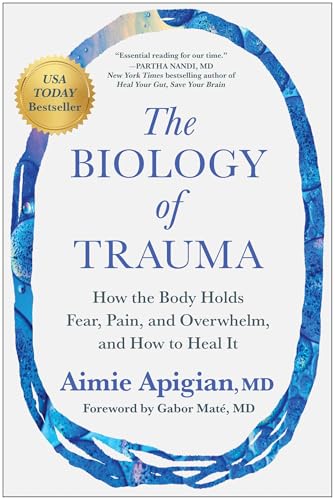
The Biology of Trauma is not a Blender or game production book. It discusses how fear, pain, and stress can affect the body. That subject may help writers create more thoughtful characters, but it needs careful reading. Trauma is a serious topic, and game creators should avoid using it as a shallow plot device.
For a story-focused game, research can support empathy and believable character choices. It may help you think about behavior, recovery, and emotional needs. It will not explain rigging, animation, or game logic. Use reputable clinical guidance and avoid treating a general book as medical advice.
Pros:
- May support more thoughtful character writing
- Encourages empathy in story design
- Can inspire emotional arcs and conflict
- Useful for narrative game brainstorming
- Reminds creators to treat serious topics with care
Cons:
- Not a Blender learning resource
- Not a substitute for clinical advice
- May be too serious for a purely technical project
My Recommendation
This book is best for narrative designers and writers building games with emotional themes. It may help shape character motivation, but it should not replace professional research. If your goal is how to make a game in Blender, place this far below modeling, animation, and engine tutorials. Buy it for story depth, not technical instruction.
Emotional Leadership for Game Teams

Emotionally Charged: How to Lead in the New World of Work focuses on leadership and work culture. It does not cover Blender, modeling, or game engines. Still, a game project can become a team project quickly. Someone must set goals, handle feedback, protect focus, and keep work moving.
I see this as a support book for a lead artist, producer, or small studio owner. It may help you think about trust and team energy. Solo developers may also find value when managing contractors or online collaborators. For how to make a game in Blender, its lessons belong to project management rather than asset creation.
Pros:
- Useful for people leading creative teams
- Encourages healthier work conversations
- May improve project focus and trust
- Helpful when managing feedback and deadlines
- Supports long-term team stability
Cons:
- Does not explain Blender or game design
- Less useful for a solo beginner
- Leadership advice may need practical adaptation
My Recommendation
This book is best for a team lead or small studio owner. It can support the human side of game development, especially when several people share a Blender pipeline. It is not needed for a first solo project. Buy it when communication and leadership become bigger problems than modeling.
Fantasy Writing for a Game World

How to Defeat a Demon King in Ten Easy Steps is a fantasy fiction title, not a technical guide. Its connection to game development comes from story, tone, conflict, and character goals. Reading fiction can help a designer notice how a setting creates curiosity. It can also spark ideas for quests, enemies, and player rewards.
I would not use this book to learn Blender functions. I would use it during the planning stage when a game world feels empty. A good story can give a model a reason to exist. A tower becomes more than a tower when the player knows who built it, what happened there, and why reaching it matters.
Pros:
- May inspire fantasy game settings
- Offers ideas for conflict and character goals
- Can help a world feel more memorable
- Useful for writers and narrative designers
- Provides a break from technical study
Cons:
- Does not teach Blender or game engines
- Fiction lessons may not transfer directly
- Not useful for asset export or coding
My Recommendation
This book is best for a fantasy game creator who needs story fuel. It may help you design a stronger setting before modeling it in Blender. I would buy it for inspiration, not instruction. Pair it with a real Blender course if your priority is how to make a game in Blender.
How to Choose the Right Learning Resource
When I review a product for a creative project, I first ask what problem it solves. A book about communication cannot replace a modeling guide. A story cannot replace a scripting lesson. Honest matching matters more than a high rating.
Choose a technical Blender resource if you need help with modeling, UVs, materials, rigging, or animation. Choose a game design resource if you struggle with rules, goals, pacing, or player choice. Choose a writing resource if your world feels flat or your characters lack purpose.
Check the edition before buying. Blender changes often, and older books may show outdated layouts. Older material can still teach sound ideas, but you may need current videos or manuals to follow the exact interface. This is especially important for beginners.
Best For Comparison
| Best for | Why |
|---|---|
| Character artists | Character Development in Blender offers the closest match to modeling and character study. |
| Game designers | Questline can spark ideas for goals, rewards, choices, and player interaction. |
| Creative team leads | Digital communication and emotional leadership books support feedback and project health. |
Common Mistakes Beginners Make
The first mistake is starting too big. A beginner may plan a massive world with dozens of characters, but that plan hides the basic skills that need practice. Start with one room, one player, one goal, and one clear ending.
The second mistake is polishing art before testing play. A beautiful model cannot fix poor movement or a confusing goal. Use simple blocks first. Test the camera, controls, and level shape before adding detailed textures.
The third mistake is ignoring scale. A door that is too short can make a character look strange. A staircase with the wrong rise can make movement feel awkward. Choose a rough human scale and keep it consistent.
The fourth mistake is skipping file organization. Unnamed objects and scattered textures create confusion. Use folders, collections, version numbers, and clear names. A tidy project feels slower on day one but faster every day after that.
The fifth mistake is treating Blender as the whole game tool. Blender creates excellent art, but a modern game usually needs an engine. Learn how the tools connect. That connection is central to how to make a game in Blender successfully.
A Simple Beginner Project Plan
For your first project, create a small treasure room. The player enters, finds a key, opens a door, and reaches an exit. This project needs only a few assets and gives you a complete game loop.
In Blender, model a floor, four walls, a door, a key, a chest, and one light fixture. Make the shapes simple. Add basic materials with clear color differences. Create a player model only after the blockout works.
Export the assets to your chosen engine. Add a player controller and a camera. Create a key pickup. Set the door to open when the player has the key. Add a small sound and a message on screen. Then test the complete path from start to finish.
After the first version works, improve one thing at a time. Make the room easier to read. Add a second path. Improve the lighting. Animate the door. Add a simple pause menu. Each change teaches a useful skill without burying you under a giant project.
FAQs Of how to make a game in blender
Can I make a complete game using only Blender?
Blender can create models, scenes, materials, rigs, and animations. For a modern finished game, most creators use Blender with a separate engine such as Godot, Unity, or Unreal. The engine handles code, input, physics, menus, sound, and exporting.
Is Blender good for beginners?
Yes, but Blender has many tools, so beginners should follow a small project. Learn navigation, basic modeling, materials, and simple animation first. A focused project is easier than trying to learn every feature at once.
What should I learn first in Blender for game development?
Start with navigation, object editing, simple modeling, transforms, materials, and file organization. Then learn UV mapping, basic lighting, rigging, animation, and export. Practice each skill inside a small game scene.
Which game engine works best with Blender?
There is no single best choice. Godot offers a friendly open-source workflow. Unity has a large learning community and broad asset support. Unreal Engine offers powerful visual tools and high-end rendering. Choose the engine that fits your goals and learning style.
Do I need to know coding to make a game in Blender?
You can create assets without coding, but you need some scripting or visual logic to build interactive game systems. Start with simple actions such as movement, pickups, doors, and checkpoints. You can learn these systems one at a time.
Final Verdict: Which Should You Buy?
For learning how to make a game in Blender, Character Development in Blender is the closest fit, though its version is old. The other books help with art, story, design, or teamwork rather than direct Blender skills.
Use a current Blender guide with official engine docs, then keep your first game small. Build, test, export, and improve one step at a time.